
Important: This documentation is about an older version. It's relevant only to the release noted, many of the features and functions have been updated or replaced. Please view the current version.

Data source permissions
Data source permissions allow you to restrict access for users to query a data source. For each data source there is a permission page that allows you to enable permissions and restrict query permissions to specific Users and Teams.
Only available in Grafana Enterprise.
Enable data source permissions
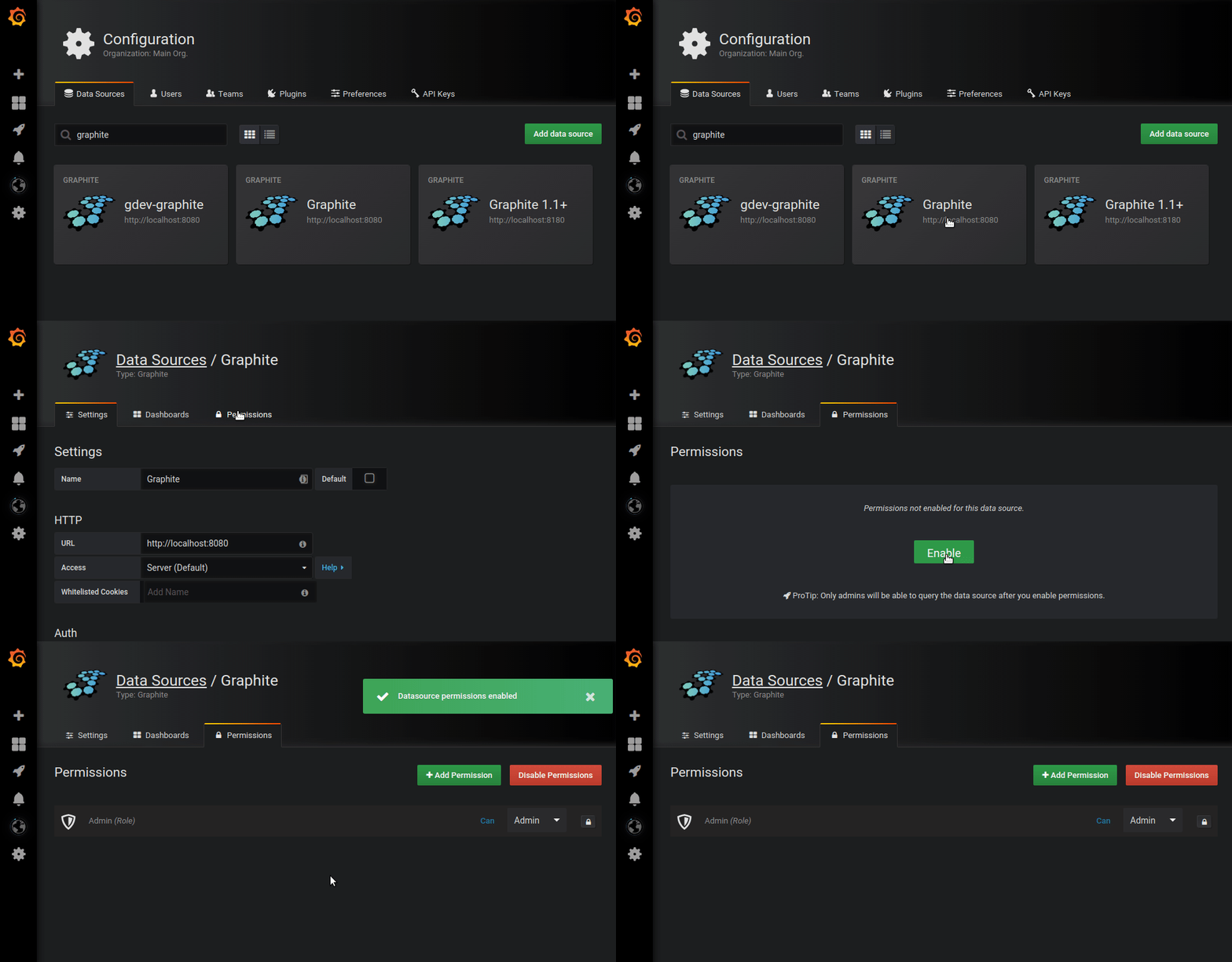
By default, data sources in an organization can be queried by any user in that organization. For example, a user with the Viewer role can issue any possible query to a data source, not just
queries that exist on dashboards they have access to.
When permissions are enabled for a data source in an organization, you restrict admin and query access for that data source to admin users in that organization.
Enable permissions for a data source:
- Navigate to Configuration > Data Sources.
- Select the data source you want to enable permissions for.
- On the Permissions tab, click Enable.
Caution: Enabling permissions for the default data source makes users not listed in the permissions unable to invoke queries. Panels using default data source will return
Access denied to data sourceerror for those users.
Allow users and teams to query a data source
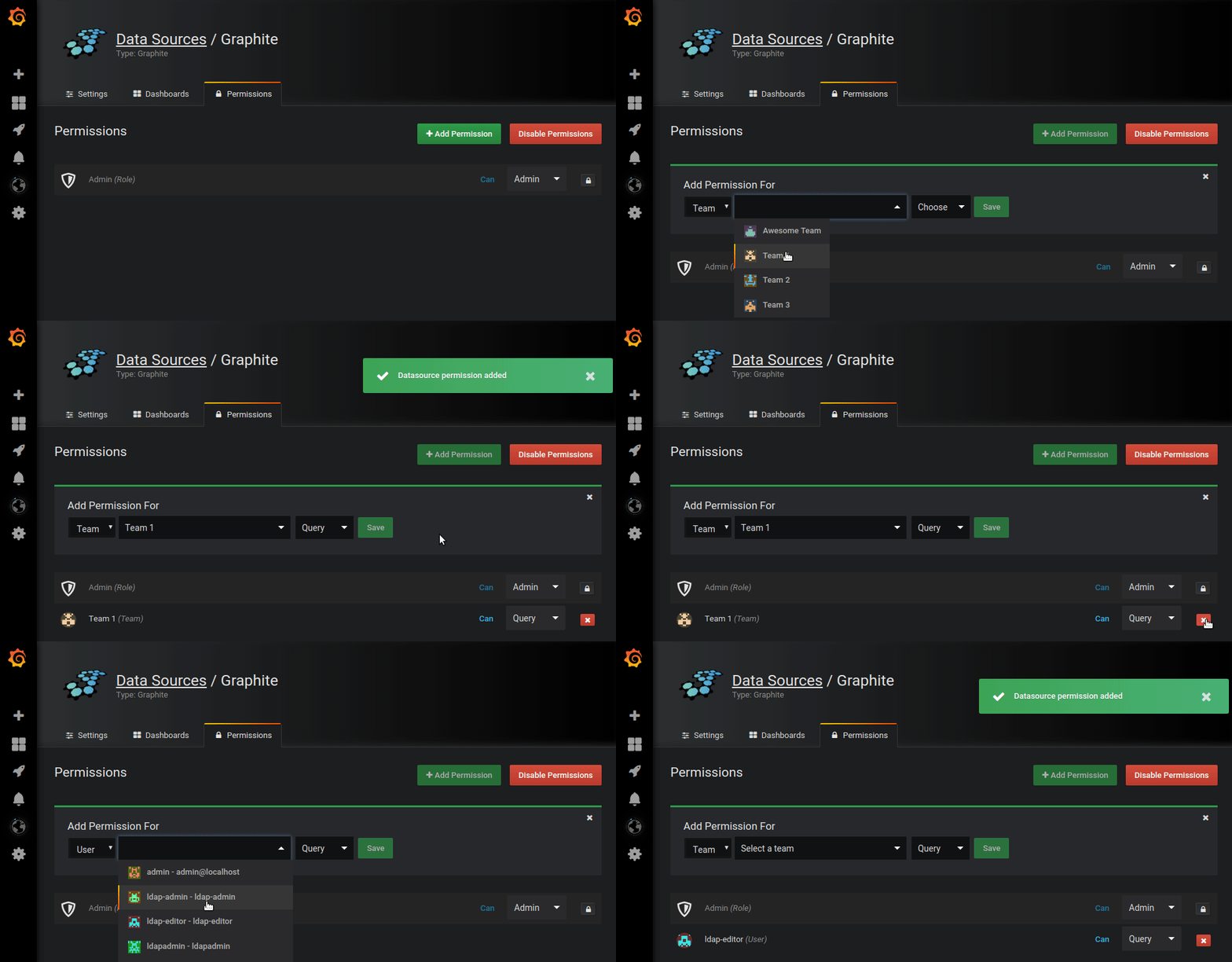
After you have enabled permissions for a data source you can assign query permissions to users and teams which will allow access to query the data source.
Assign query permission to users and teams:
- Navigate to Configuration > Data Sources.
- Select the data source you want to assign query permissions for.
- On the Permissions tab, click Add Permission.
- Select Team or User.
- Select the entity you want to allow query access and then click Save.
Disable data source permissions
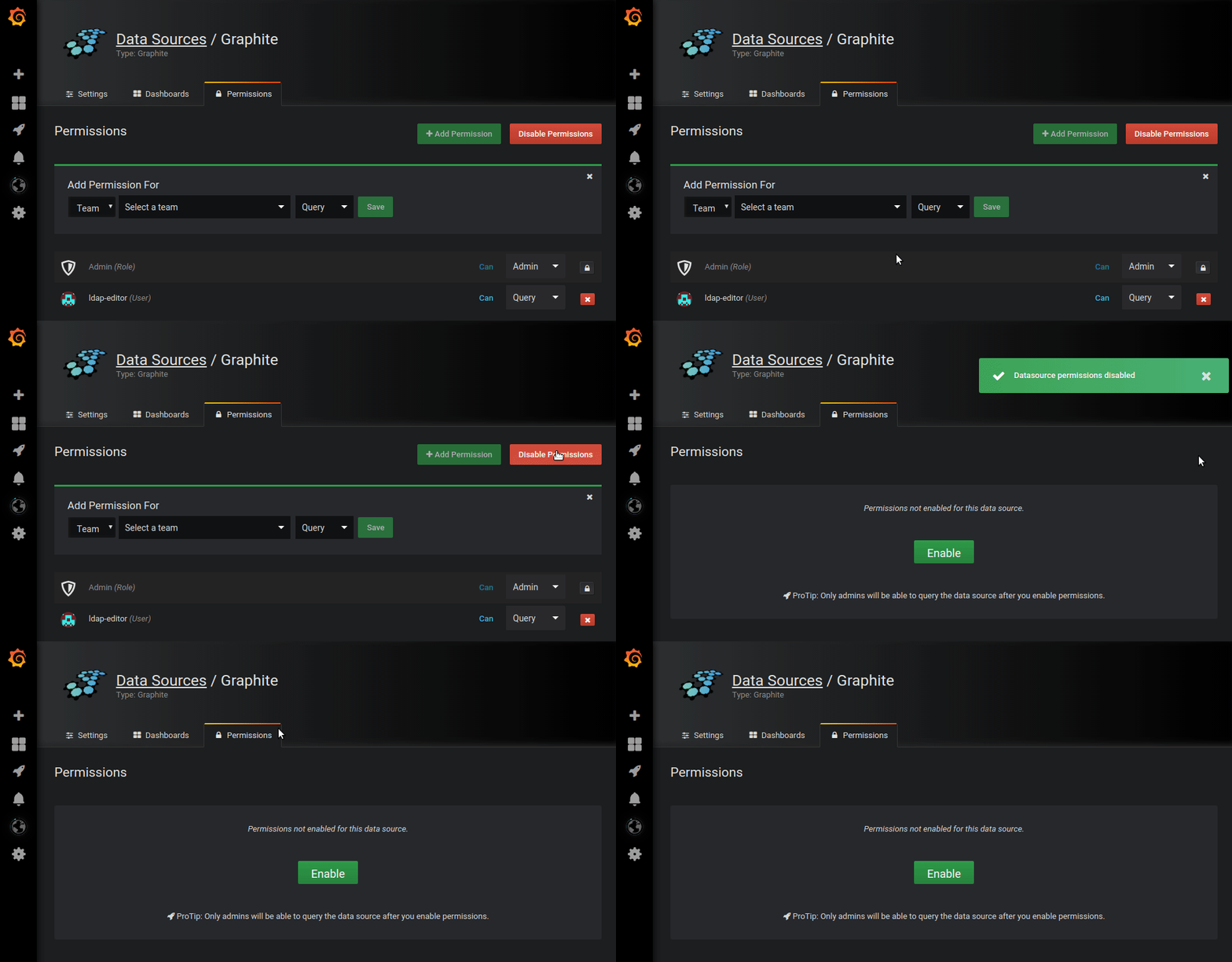
If you have enabled permissions for a data source and want to return data source permissions to the default, then you can disable permissions with a click of a button.
Note that all existing permissions created for the data source will be deleted.
Disable permissions for a data source:
- Navigate to Configuration > Data Sources.
- Select the data source you want to disable permissions for.
- On the Permissions tab, click Disable Permissions.
Was this page helpful?
Related resources from Grafana Labs



