
Important: This documentation is about an older version. It's relevant only to the release noted, many of the features and functions have been updated or replaced. Please view the current version.

Plugin catalog
The Plugin catalog allows you to browse and manage plugins from within Grafana. Only Grafana server administrators and organization administrators can access and use the plugin catalog. The following access rules apply depending on the user role:
Note: The Plugin catalog is designed to work with a single Grafana server instance only. Support for Grafana clusters will be added in future Grafana releases.
Before you can use the Plugin catalog, you must enable it in the Grafana configuration file. Before following the steps below, make sure you are logged in as a Grafana administrator.
Currently, there are two entry points to the Plugin catalog.
- Grafana server administrators can find it at Server Admin > Plugins.
- Organization administrators can find it at Configuration > Plugins.
Browse plugins
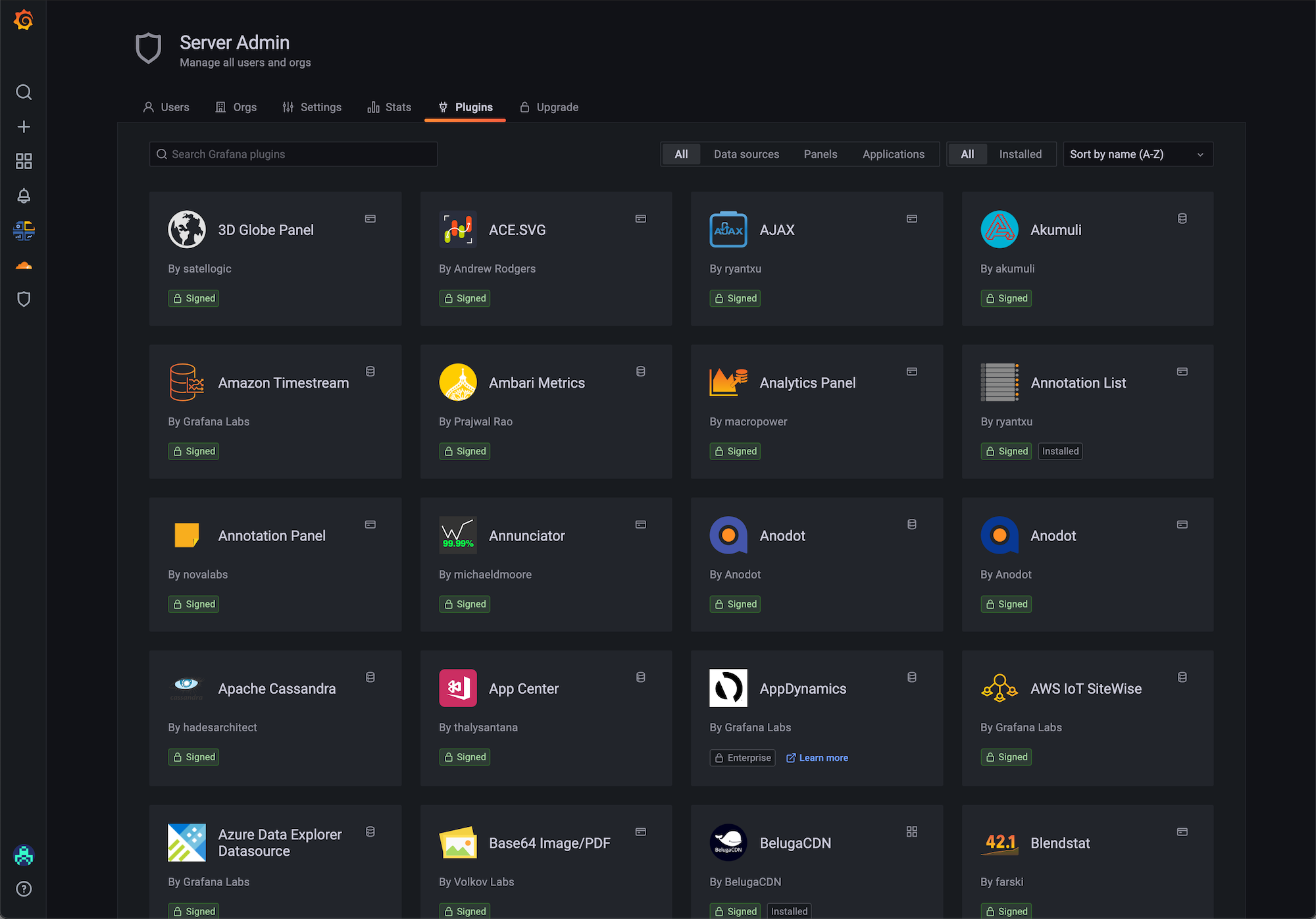
To browse for available plugins:
- In Grafana, navigate to the Plugin catalog to view installed plugins.
- Click the All filter to browse all available plugins.
- Click the Data sources, Panels, or Applications buttons to filter by plugin type.
Install a plugin
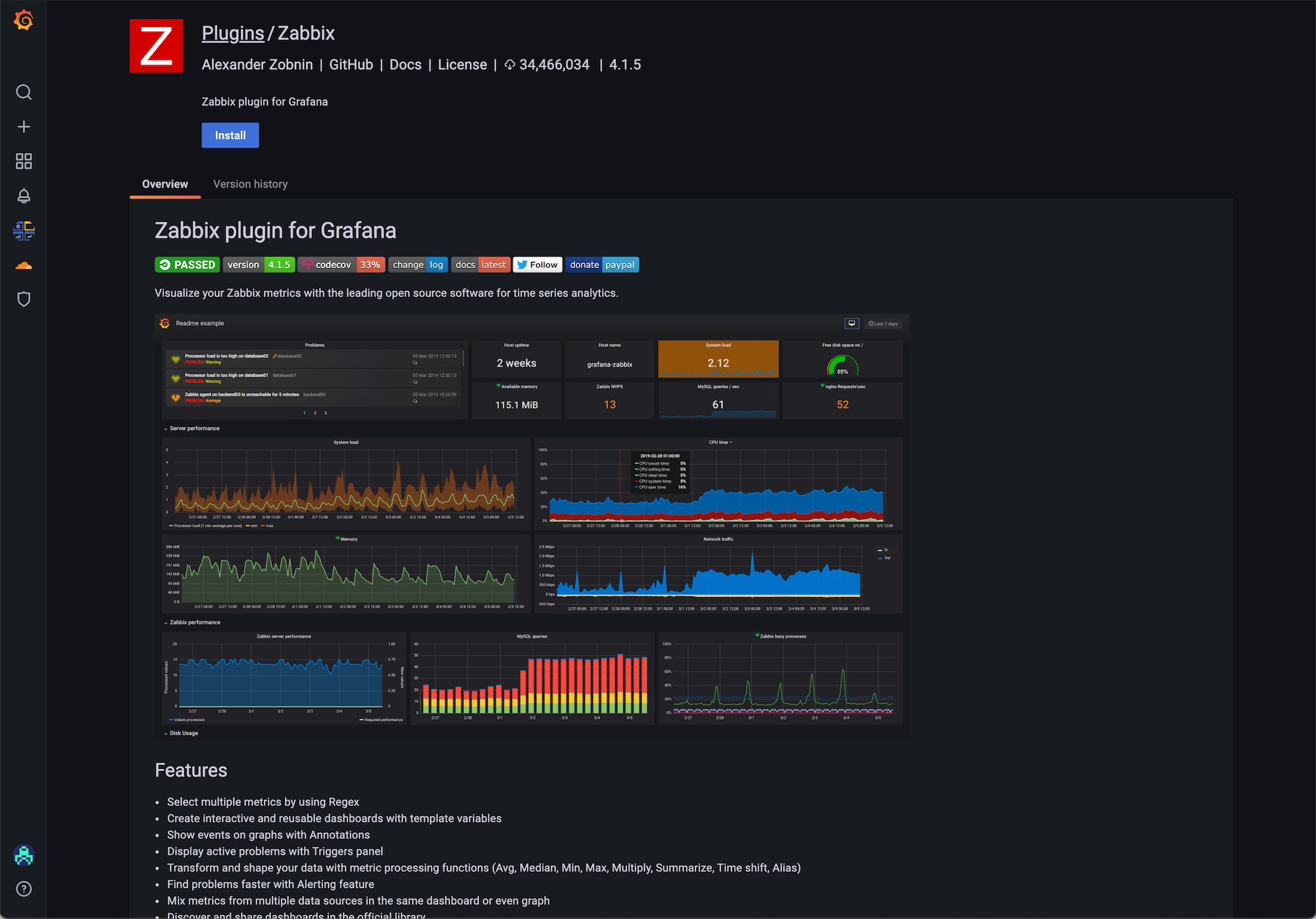
To install a plugin:
- In Grafana, navigate to the Plugin catalog to view installed plugins.
- Browse and find a plugin.
- Click on the plugin logo.
- Click Install.
When the update is complete, you see a confirmation message that the installation was successful.
Update a plugin
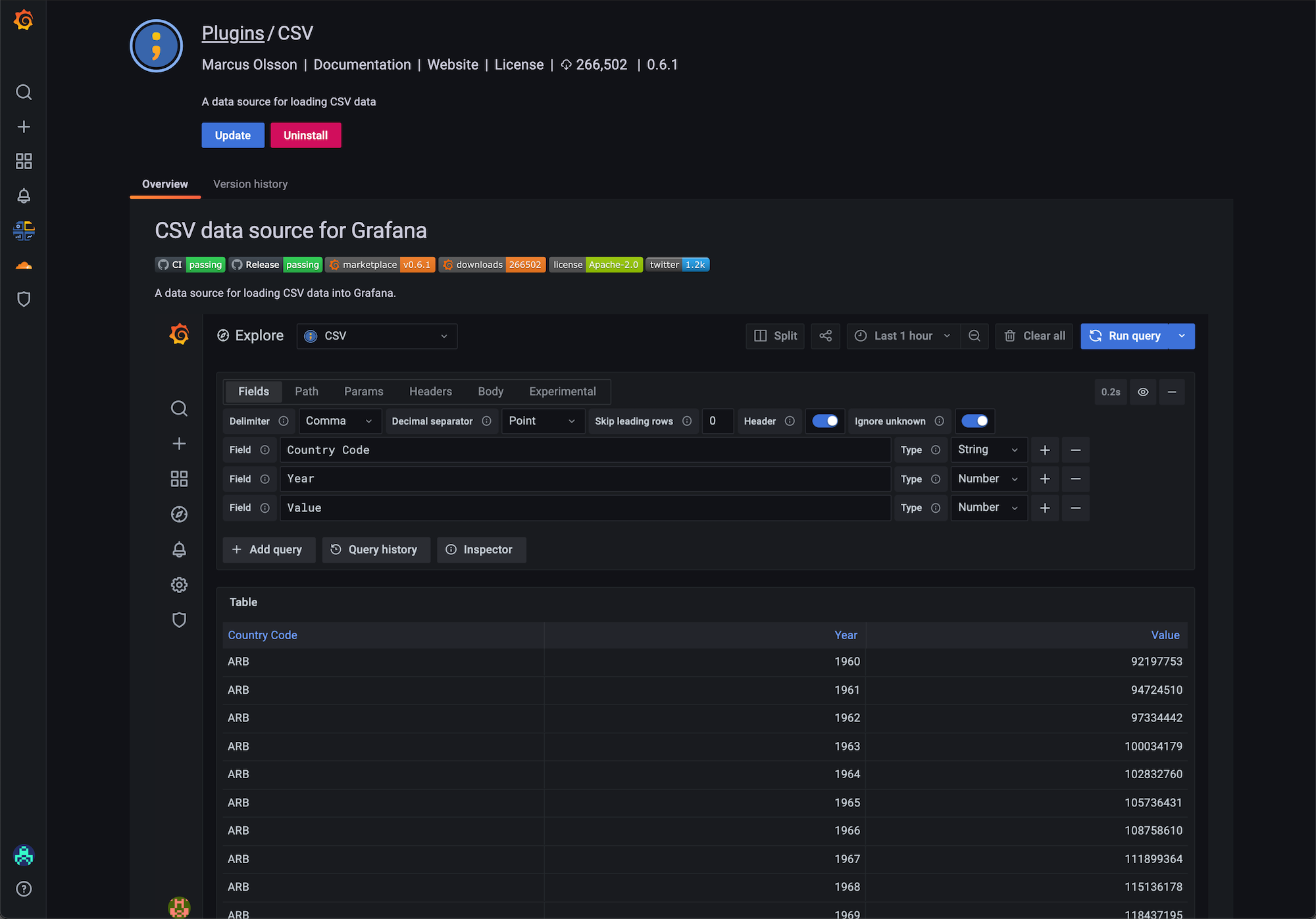
To update a plugin:
- In Grafana, navigate to the Plugin catalog to view installed plugins.
- Click on the plugin logo.
- Click Update.
When the update is complete, you see a confirmation message that the update was successful.
Uninstall a plugin
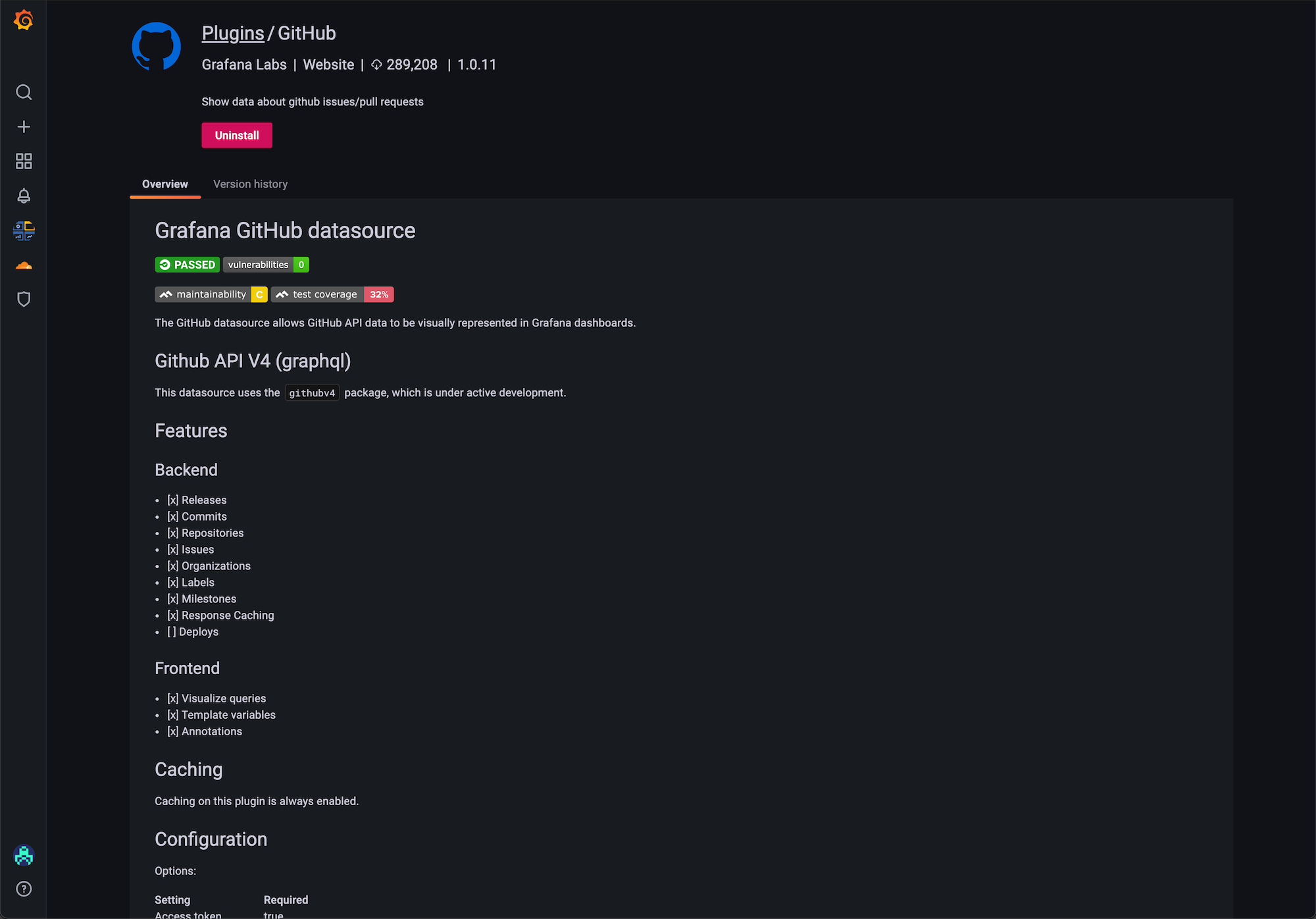
To uninstall a plugin:
- In Grafana, navigate to the Plugin catalog to view installed plugins.
- Click on the plugin logo.
- Click Uninstall.
When the update is complete, you see a confirmation message that the uninstall was successful.
Was this page helpful?
Related resources from Grafana Labs



