
Menu
Important: This documentation is about an older version. It's relevant only to the release noted, many of the features and functions have been updated or replaced. Please view the current version.
Documentation Grafana documentation
Grafana Enterprise
Fine-grained access control
Manage role assignments
Manage team role assignments
Grafana documentation
Grafana Enterprise
Fine-grained access control
Manage role assignments
Manage team role assignments
Grafana documentation
Grafana Enterprise
Fine-grained access control
Manage role assignments
Manage team role assignmentsEnterprise
Open source
Manage team role assignments
There are two ways to assign roles directly to teams: in the UI using the role picker, and using the API.
Manage teams’ roles within a specific Organization using the role picker
In order to assign roles to a team within a specific Organization using the role picker, you must have an account with one of the following:
- The Admin built-in role.
- The Server Admin role.
- The fixed role
fixed:roles:writer, assigned for the given Organization. - A custom role with
teams.roles:addandteams.roles:removepermissions.
You must also have the permissions granted by the roles that you want to assign or revoke.
Steps:
- Navigate to the Teams page by hovering over Configuration (the gear icon) in the left navigation menu and selecting Teams.
- Click on the Roles column in the row for the team whose roles you would like to edit.
- Deselect one or more selected roles that you would like to remove from that team.
- Select one or more roles that you would like to assign to that team.
- Click the Update button to apply the selected roles to that team.
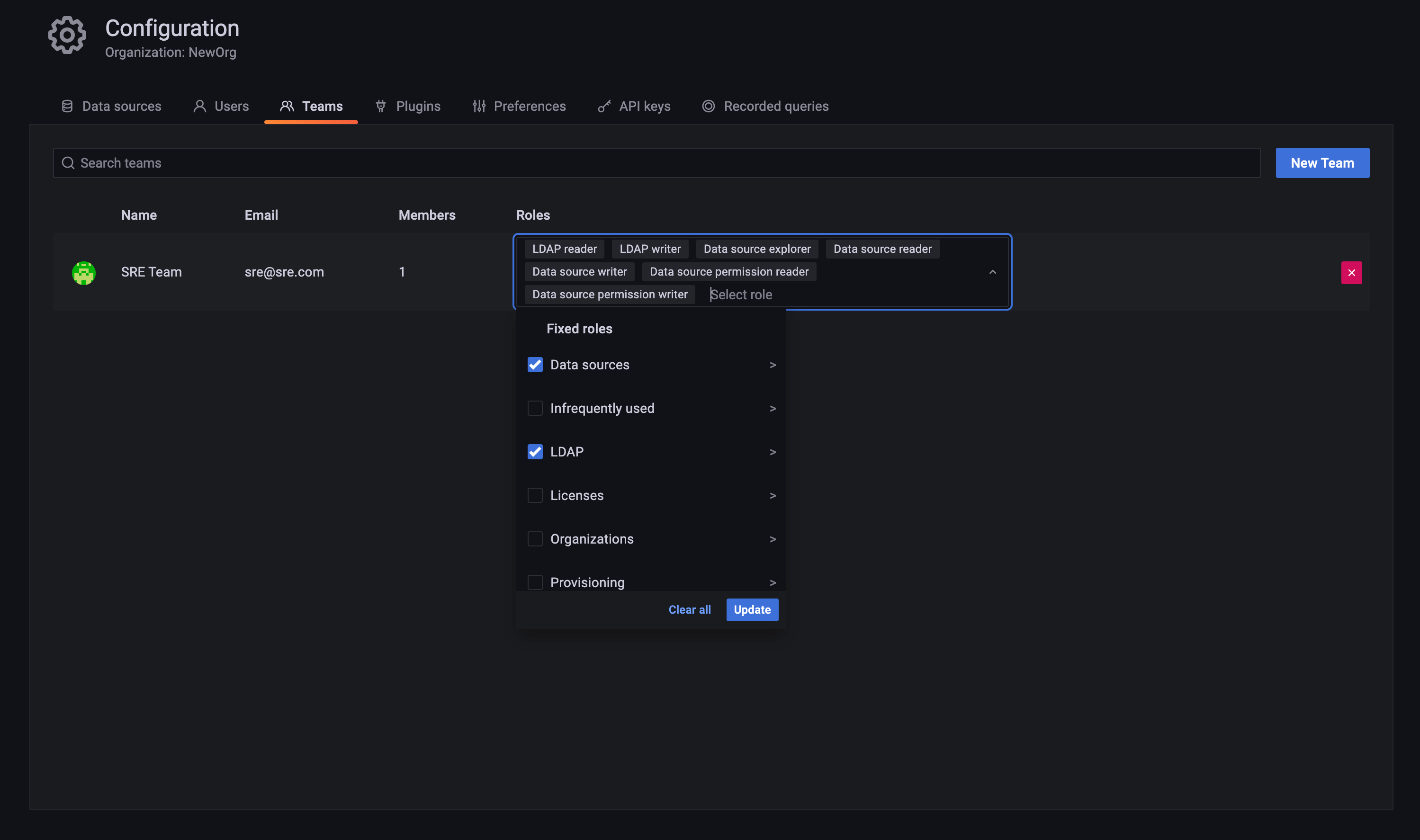
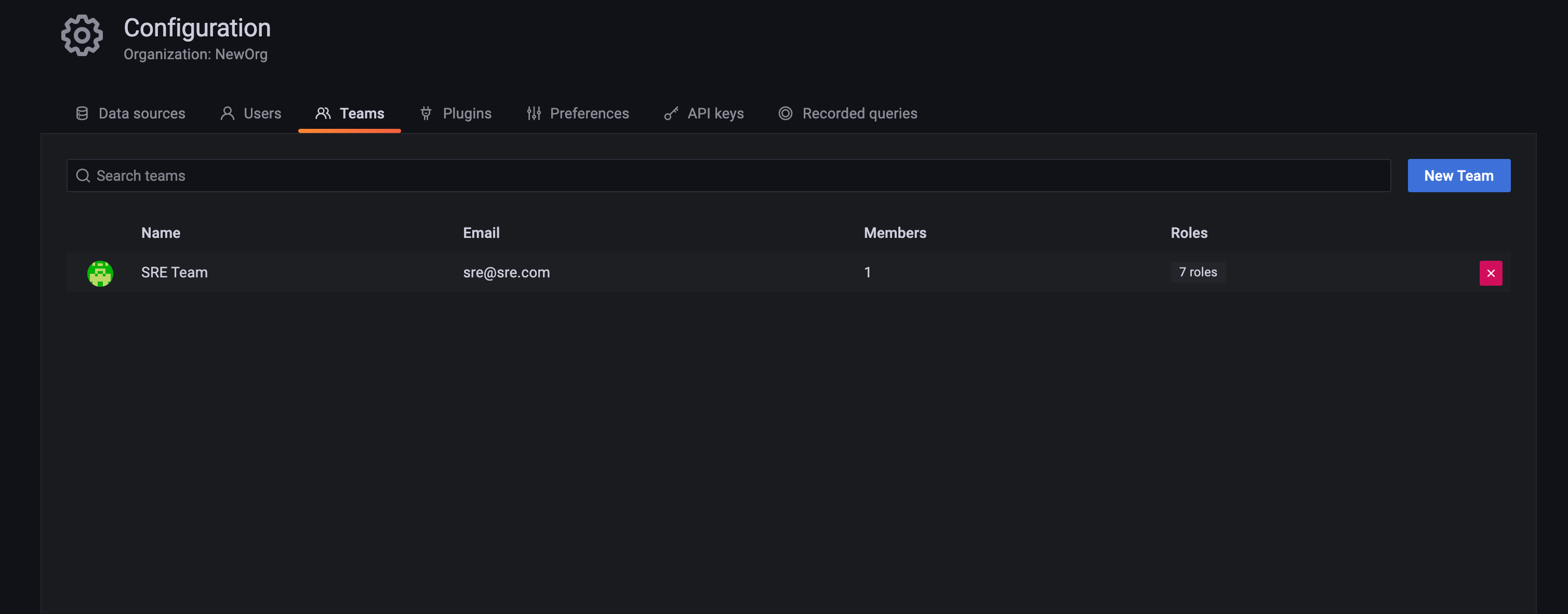
The team’s permissions will update immediately, and the UI will reflect its new permissions.
Manage teams’ roles via API
To manage team role assignments via API, refer to the fine-grained access control HTTP API docs.
Was this page helpful?
Related resources from Grafana Labs

Video

Getting started with managing your metrics, logs, and traces using Grafana
In this webinar, we’ll demo how to get started using the LGTM Stack: Loki for logs, Grafana for visualization, Tempo for traces, and Mimir for metrics.
Video

Getting started with Grafana dashboard design
In this webinar, you'll learn how to design stylish and easily accessible Grafana dashboards that tell a story.
Video

Building advanced Grafana dashboards
In this webinar, we’ll demo how to build and format Grafana dashboards.